Notes:
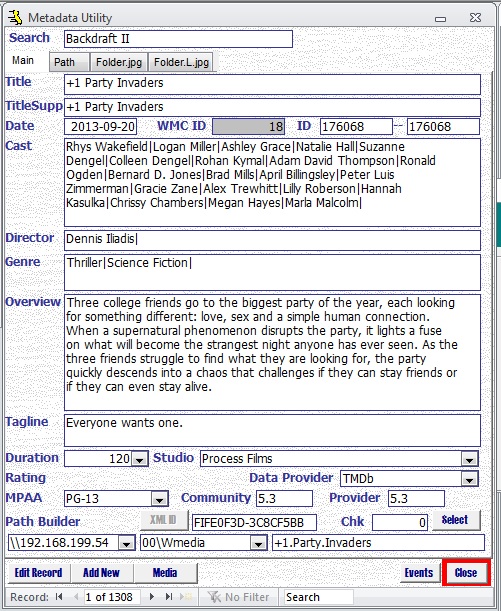
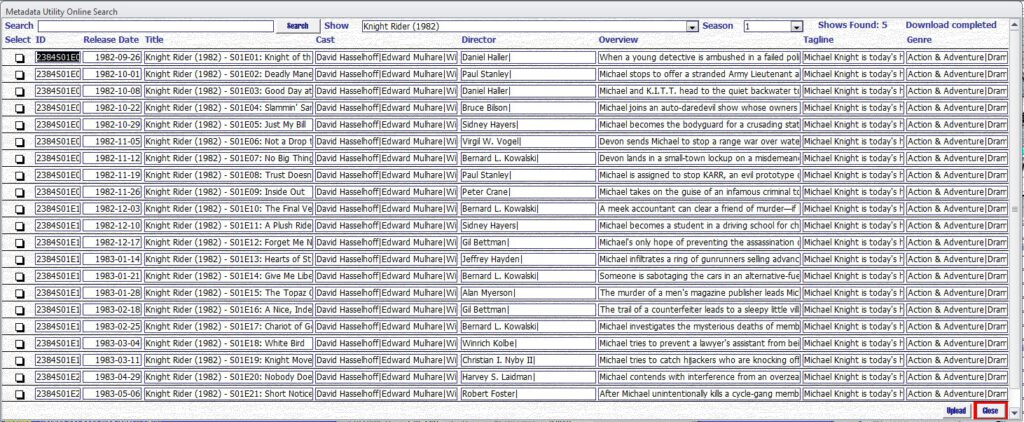
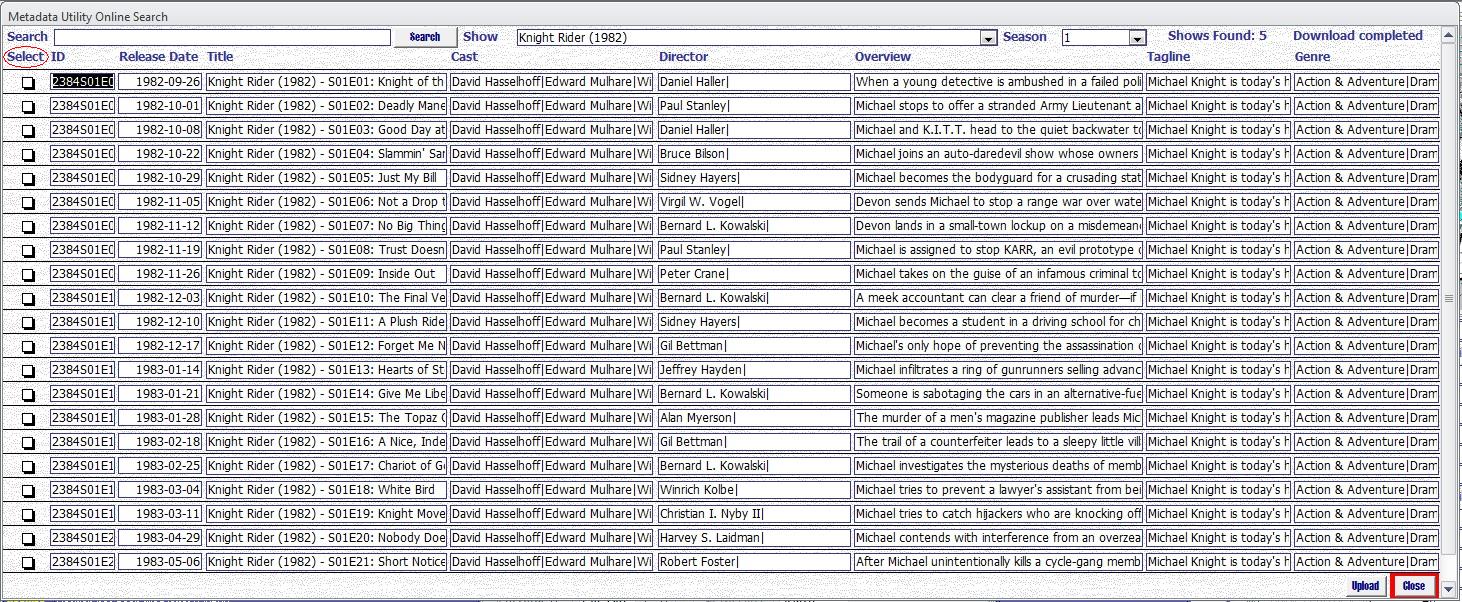
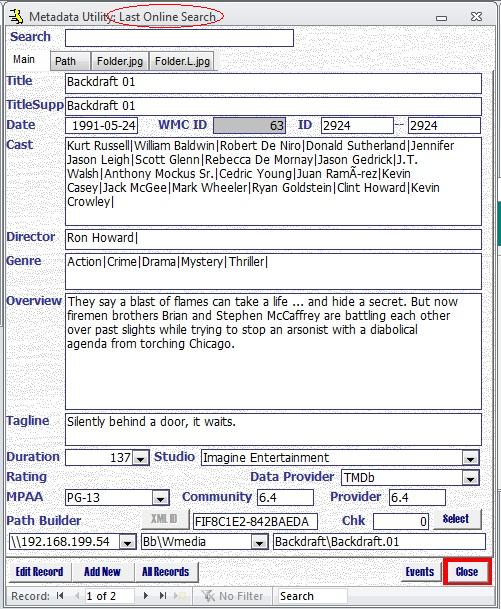
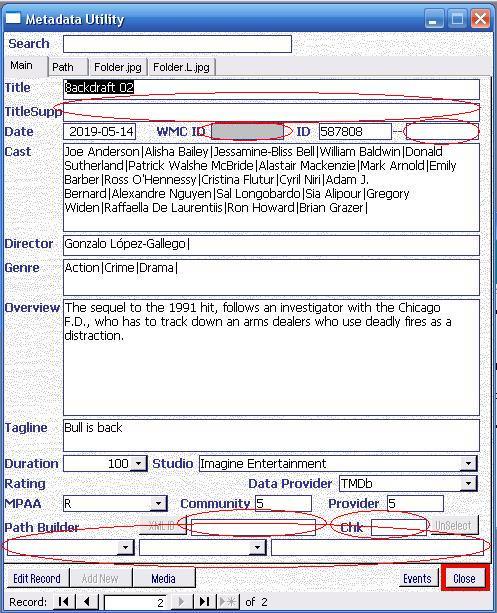
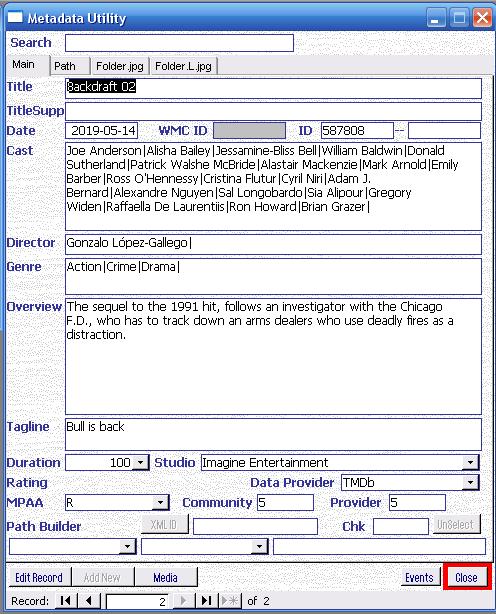
-A typical Movie that has been automatically been entered using ‘Movie Online Search’ Tool will look like in the picture to the left and is what is called in Metadata Utility the ‘Master Metadata Information’.
-A ‘Master Metadata Information’ is always available in Metadata Utility in the ‘Pending’ Records Queue. For additional Information on ‘Pending’ Records see ‘Pending’ Records (link needed).
-‘Pending’ (aka. ‘Master Metadata Information’) Records will always have (at least) the following blank fields (Values not populated):
‘TittleSupp’,
‘WMC ID’,
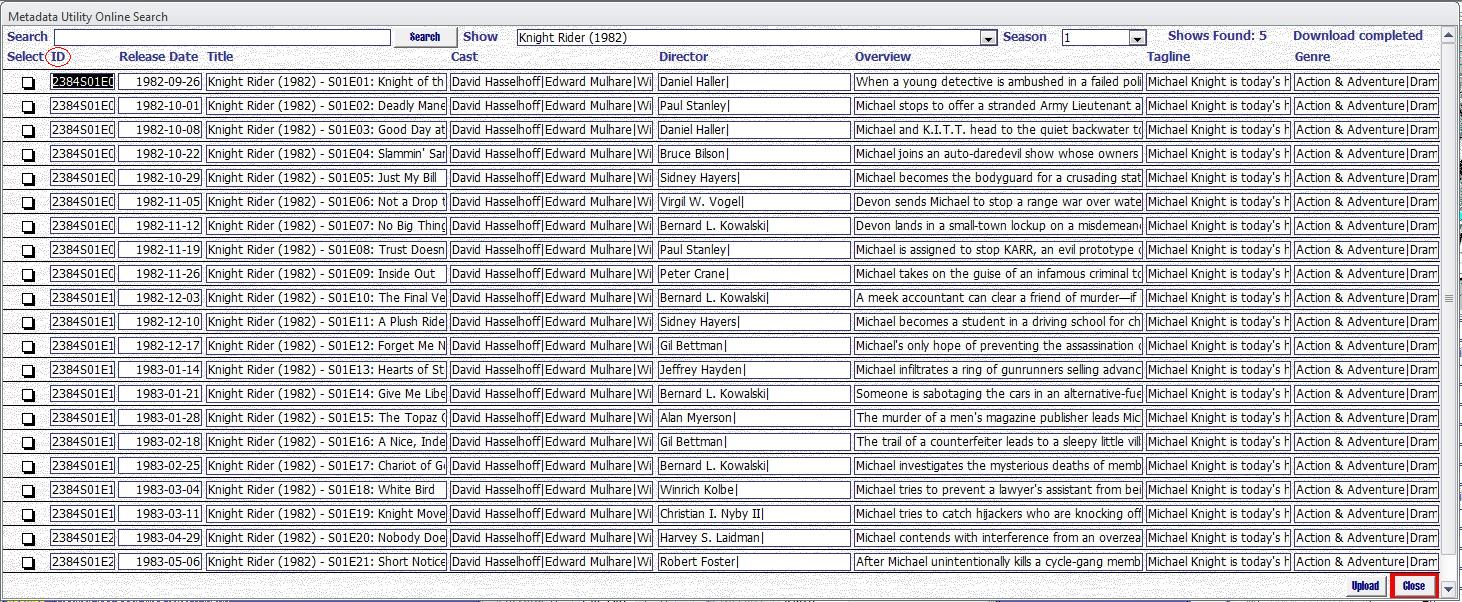
‘ID’ (Link),
‘XML ID’,
‘Chk’,
‘Path Builder’
‘Path 1 – Main Resource/Network NAS’
‘Path 2 – Main Share’
‘Path 3 – Movie Path’
It is also possible, that if the Movie(s) that has (have) been searched, that there may be additional Information missing. This is especially typical of recent/new Movies that just have been released (for example ‘Tagline’, ‘Duration’, ‘Studio’). In such case, then you can add that information manually.
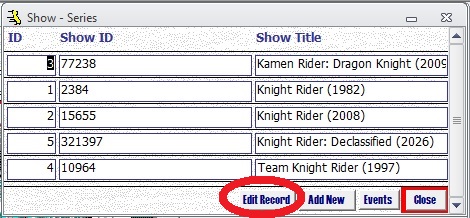
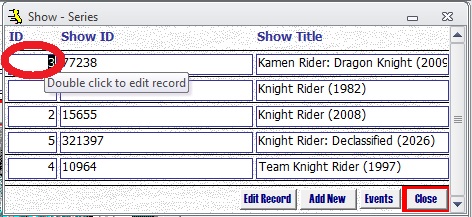
-To ‘Edit’ the record, either Double Click on the ‘Title’ or click on the ‘Edit Record’ at the bottom left of Metadata Utility.
-If you Enter ANY Information on ‘TittleSupp’ then you will automatically be adding the record to your Metadata Library and also setting the record in the ‘Queue’ for Metadata (XML File) Generation. This applies also if you enter any information on the following fields:
‘TittleSupp’,
‘XML ID’ –notice that as soon as you entered a ‘TittleSupp’, Metadata Utility will generate the necessary ‘XML ID’ Field. You can use it and/or replace it with another Value, if needed. Just keep in mind that the formatting MUST be 17 Characters where you have a first group of 8 characters, followed by a dash ‘ – ‘ –without the single quotes– followed by a last 8 Character Group. If this is NOT met, then you may have problems in Windows Media Center,
‘Chk’ 0 = Unselected, -1 = Selected. Other Values are 1 = Suspect, 2 = Orphan Records –this value may or may not be present on actual orphan records and it will depend how the record was orphaned, automatically or manually. In any case, Metadata Utility will be able to determine Orphaned Records with or without this value being populated,
‘Path Builder’
‘Path 1 – Main Resource/Network NAS’
‘Path 2 – Main Share’
‘Path 3 – Movie Path’
-‘TittleSupp’ is the actual Field used by Metadata Utility to set the ‘Title’ of the Movie in Windows Media Center. We will go into more detail as to ‘why’ and ‘how to’ better organize your Media Library using Metadata Utility in the ‘Advanced’ Section. For purposes of ‘QR’ (Quality Review) – Curation of the Data just downloaded using Metadata Utility Online Search Tool, it is recommended that you leave the field ‘TittleSupp’ empty.
(Note: once you’ve become familiar with Metadata Utility, you will be able to fill the ‘TittleSupp’ at the same time that you are ‘QR’ing’ the record)
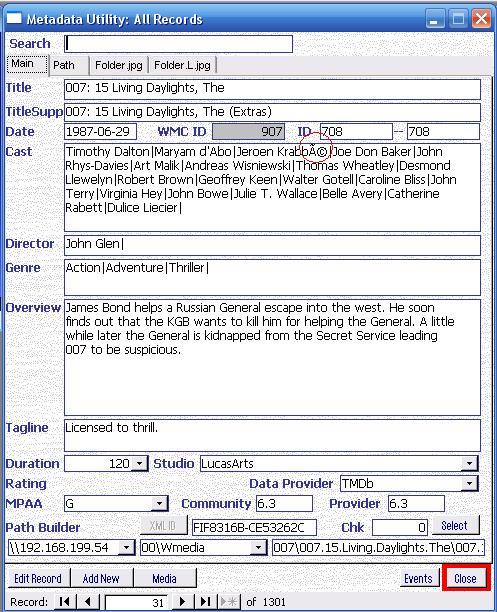
-During the inspection process, replace any “strange” characters (sometimes Artists Names, may have strange characters) – this will avoid problems during the XML generation process. Sample of Strange Characters are: @ ~
-Optional (highly recommended) Also, make sure that NONE of the Information in within the record (in any field) is enclosed in double quotes. In case double quotes are found, then replace the double quotes with single quotes. (this is only helpful if later, you want to have a manual check of Metadata Records created for Windows Media Center but it is not necessary for Metadata Utility to create the needed XML Files).
IMPORTANT
Avoid having problems during XML Files Generation and/or Management by avoiding any of the following in within your Metadata Utility Record(s) (Data):
-double Quotes
-Single Quotes (even single quote such as ‘Email Address’ –see the single quotes– or, It’s own… –see the apostrophe after ‘it’. In such case, use instead “it is’ instead of ‘it’s’ WITHOUT using single quotes).
-Special Characters and/or Non-English Punctuation.
Metadata Utility is mainly built for an English Character Set. That said, we have had customers that use other languages such as -not limited to, listed in no particular order–: French, German, etc who have reported no issues while using Metadata Utility, even in their own language. Having said that, we have seen, in such cases where the above listed characters are found, that during the XML File Generation, that those generated XML Files may not be always properly formatted and thus cause problems in displaying that XML Metadata Information in Windows Media Center.
Note:
Curating/Cleaning Up/QRing your Data will ensure your Data is clean and readable and it is an essential, VERY important step to ensure the later creation of your Metadata Files (XML Files) works properly without errors.
Furthermore, should you need to have a detailed Troubleshooting of your XML Generation process, then it will be crucial that the Curating/QR process has been completed. Failure to ‘QR’/Clean Up the records in Metadata Utility may result in errors during the automated XML File generation (so it is either ‘do it now’ as you are inserting/downloading the information either using the ‘Metadata Utility Online Search Tool’ and/or manually entering the Data ie. ‘Adding a Movie Manually’ yourself, or ‘do it later’ as once you encounter errors in your XML Files, such as (not limited to, listed in no particular order): missing XML File Information, Windows Media Center not displaying the Metadata Information correctly, showing duplicate/’ghost’/non-existent Movies in your Windows Media Center Library, etc), then you will be forced to troubleshoot ‘why’/’which’ Record(s) are not beeing displayed properly.